Adding the Character Creator to your Custom Pawn #
If you are using the Goblin mesh in your own custom pawn with controls or A.I, you might want to add the character creator to it to allow for procedural generation or custom appearances. To do this follow these instructions:
Adding it to your Pawn Blueprint #
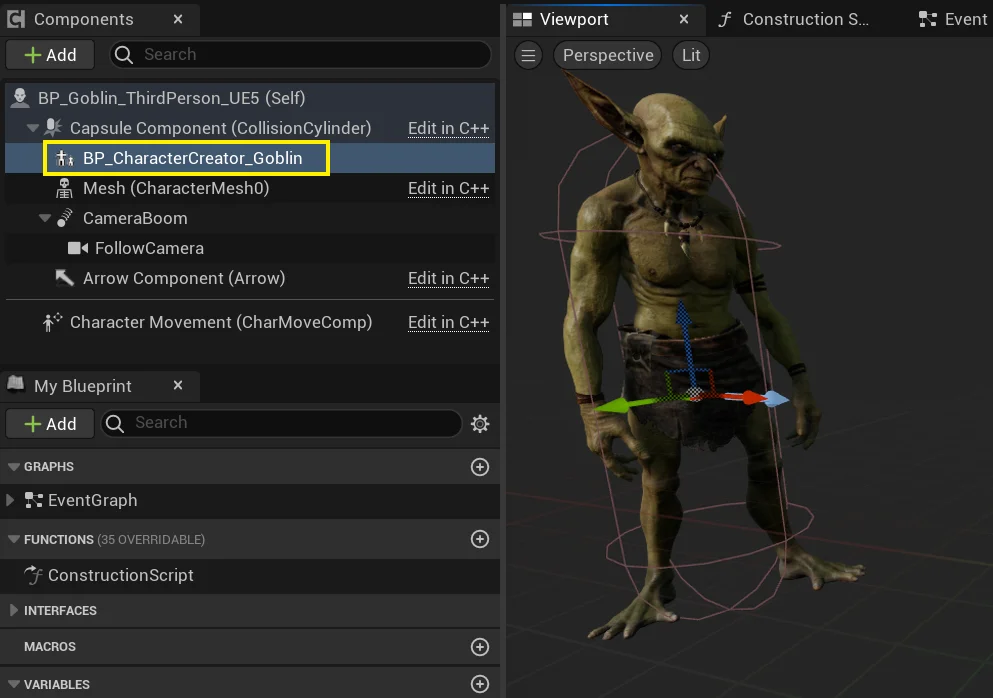
1.) Ensure that BP_CharacterCreator_Goblin is added somewhere in the blueprint heirarchy.
You can find this in Content/Goblin/Blueprints/CharacterCreator/
BP_CharacterCreator_Goblin
2.) In your blueprint, select the Class Settings, then go to the details panel

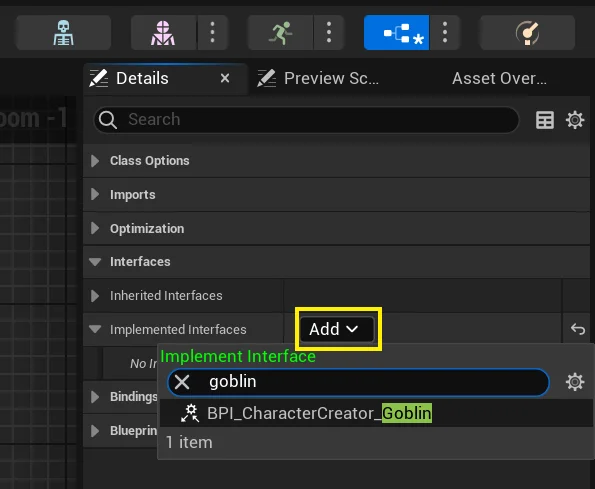
3.) Under Interfaces, add BPI_CharacterCreator_Goblin.
This interface will allow you to adjust the head bone in your Animation Blueprint.
Adding it to your Animation Blueprint #
We need to also add the interface to the animation blueprint in order to adjust the head bone size.
Follow these instructions to do so:
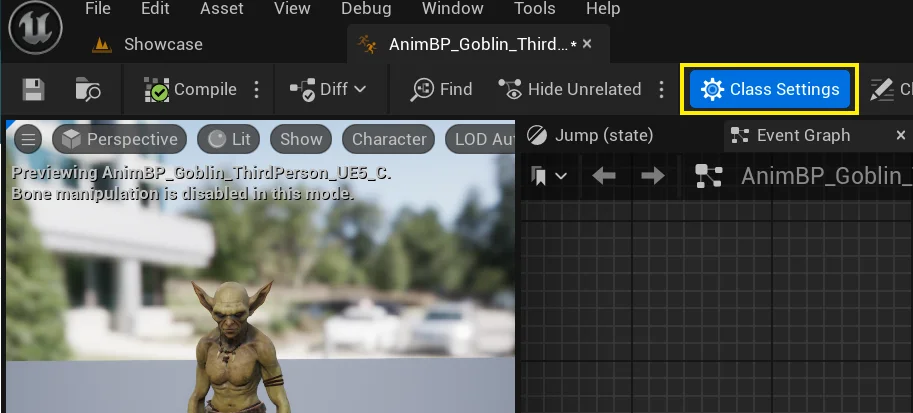
1.) Open your Animation Blueprint, and click on the Class Settings button
2.) Under Interfaces, add BPI_CharacterCreator_Goblin. Then Compile the Animation Blueprint.

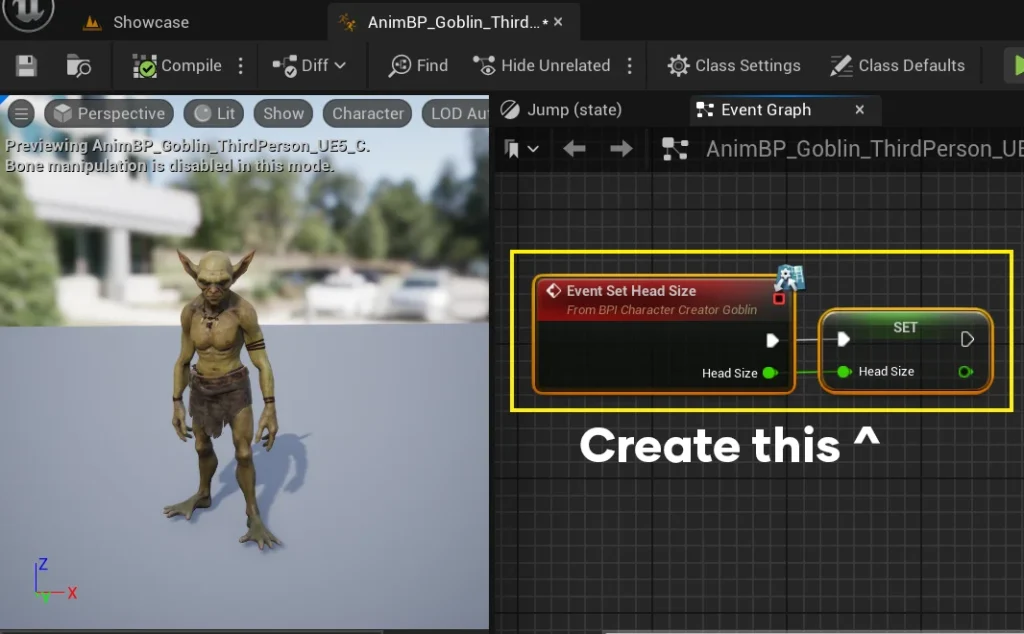
3.) After the interface has been added, you can right click the Event graph and create Event Set Head Size.
Create a Float Variable and name it HeadSize, and set it according to Event Set Head Size. (In other words, copy what you see in the image here)
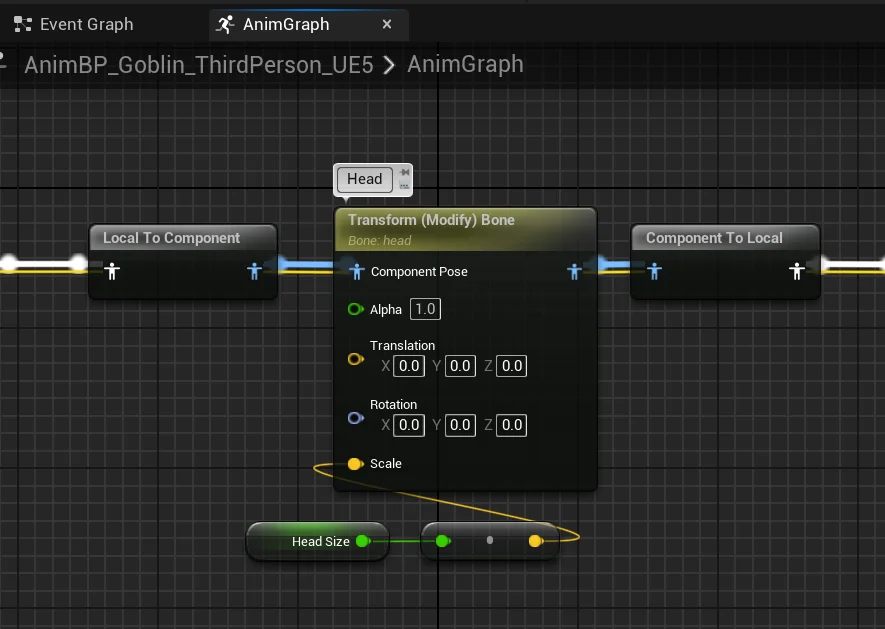
4.) Open your Animation Blueprint’s AnimGraph.
Use a Transform (Modify) Bone to change the head size according to the HeadSize variable we just created.
If you are unsure about what settings to use, feel free to open up AnimBP_Goblin_ThirdPerson_UE5 as an example asset.
If done correctly, the Character Creator blueprint will interface with your animation blueprint and change the head size when its events are called.
Saving and Loading #
If you want to save the morph targets, skin, warpaint and eye appearance of a specific character pawn, you can simply call the following events from within the pawn’s blueprint:
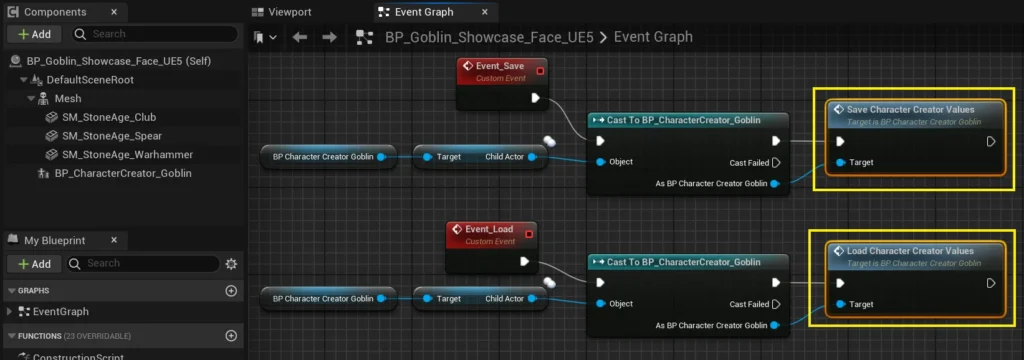
You can also adjust the saving and loading variables from the Details Panel, after selecting BP_CharacterCreator_Goblin
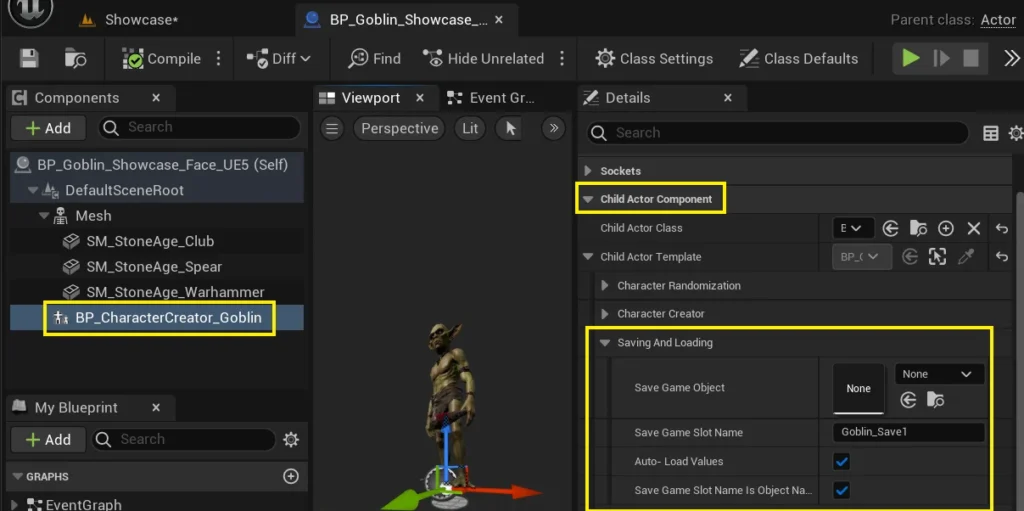
- Save Game Object – This can be ignored in this panel. Its only used within the blueprint itself.
- Save Game Slot Name – This is the name of the SaveGameSlot. You can customize it here, or also customize it within your own blueprint functions prior to saving.
- Auto-Load Values – If True, it will load the previous character customization values from the save game object and apply them to the Skeletal Mesh the moment the game starts.
- Save Game Slot Name is Object Name – If True, this will automatically set the Save Game Slot Name to be the same as the Display name as the pawn containing this blueprint. In other words, if you have an actor in a level that has a specific name, it will get its name and use that instead of a custom Save Game Slot Name.